
Jira timesheet approval
Jira Cloud records time. It does not have a timesheet that a person submits and a lead approves. This page explains the gap, the usual ways around it, and how Saguaro Hours for Jira handles it.
What Jira has, and what it does not
Jira's built-in time tracking lets people log work on an issue. Each entry is a worklog with an author, a date, a duration and a comment. Admins set working hours per day, working days per week, the display format and who may log, edit or delete worklogs. Sources: Atlassian's "Configure time tracking" (https://support.atlassian.com/jira-cloud-administration/docs/configure-time-tracking/) and "Log time on a work item" (https://support.atlassian.com/jira-software-cloud/docs/log-time-on-an-issue/), read on 2026-11-03.
Those pages describe no timesheet, no period to submit, no approval and no lock. The same settings page says Marketplace apps can extend Jira's time tracking. So if a lead must sign off each person's hours for a week or a month, the sign-off has to happen somewhere else.
How teams handle it without an app
- Search and check. A lead runs a search such as
worklogAuthor = currentUser() AND worklogDate >= "2026-10-26" AND worklogDate <= "2026-11-01"for each person, or keeps a dashboard filter, and checks the hours by eye. - Spreadsheet sign-off. Someone exports the worklogs, puts them in a spreadsheet and emails it to the lead, who replies to approve.
- Rules by convention. The team agrees not to change last week's worklogs after sign-off.
These work for small teams. Their limits follow from how they are built:
- The approval lives in an email or a file, apart from the worklogs.
- Nothing in Jira stops a worklog from changing after the hours were approved, and nothing records that it changed.
- There is no list of who has not submitted yet.
How Saguaro Hours does it
Saguaro Hours adds periods, submission, approval and locking on top of normal Jira worklogs.
1. The admin sets periods, teams and required hours
- Periods. A Jira administrator picks the site's default period: weekly (Monday to Sunday) or monthly (a calendar month). Each team can use the site default or its own type, so one team can sign off weekly and another monthly. A person in several teams needs the same period type in each; the admin page refuses a change that would give someone two.
- Teams. Each team has a name, a lead, members and, if you want one, a backup approver. People in no team cannot submit, because nobody would approve their sheet.
- Required hours. The site default is 40 hours a week unless the admin changes it, spread over Monday to Friday. A month's figure is the weekly one divided by 5, times the weekdays in the month. The admin can enter site-wide holidays, and for any person their hours per weekday (for example 4 hours a day for a 20-hour week) and their days off. Holidays and days off need no hours, so a part-timer or someone on leave is not shown as short.
2. Each person submits their period
People log time in the weekly grid or from the Log work panel on an issue. Every entry is a normal Jira worklog written as that person. When the period is done, they press Submit timesheet. The app stores the hours it read from Jira with the submission.
Short periods. If the period has less than the person's required hours, Submit asks first, for example: "You are 6.5h short of 40h this week. Submit anyway?" Cancel leaves the period open to add the missing time.
Require full hours. An administrator can turn on "Require full hours before submit". Then a short period cannot be submitted at all; the page says how many hours are missing. The app checks again on the server, after reading the hours from Jira, so the rule cannot be skipped. It applies to everyone, administrators included. For leave or sickness, a day off or a holiday lowers the required hours. The option is off by default.
A submitted period is locked in the app. Its grid cells turn grey and read-only, and the Log work panel refuses those dates.
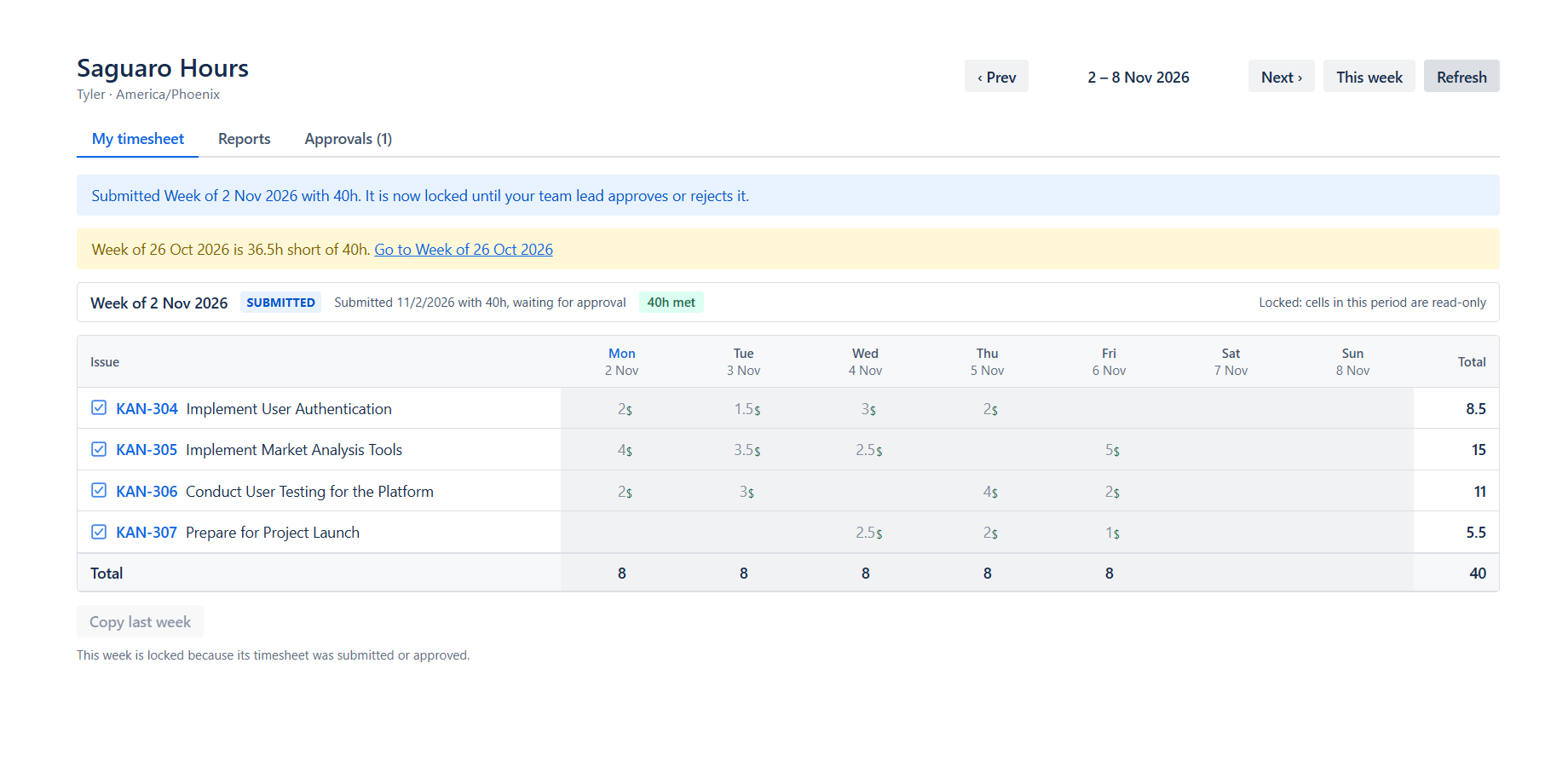
3. The lead or the backup approver approves or rejects
The lead opens the Approvals tab, picks the team and the period, and sees each member's hours, their required hours for the period, the status and the last action. Hours under a member's required hours show in amber.
- Approve a submitted sheet.
- Reject with a comment. A rejection needs a comment. A rejected sheet opens again, and the person edits and resubmits it.
- Approve all approves every submitted sheet in the team for that period. Sheets that are open, rejected or already approved are left as they are.
Only a submitted sheet can be approved. A Jira administrator can act on any team.
Backup approver. A team can have one backup approver, who sees the team in Approvals and can approve and reject exactly like the lead, at any time. Nothing waits while the lead is away, and no hand-over is needed.
Nobody approves their own timesheet. By default a lead who is also a member of the team can approve their own submitted sheet, as can a Jira administrator. With this option on, nobody can: the backup approver, the lead or another administrator approves it instead.
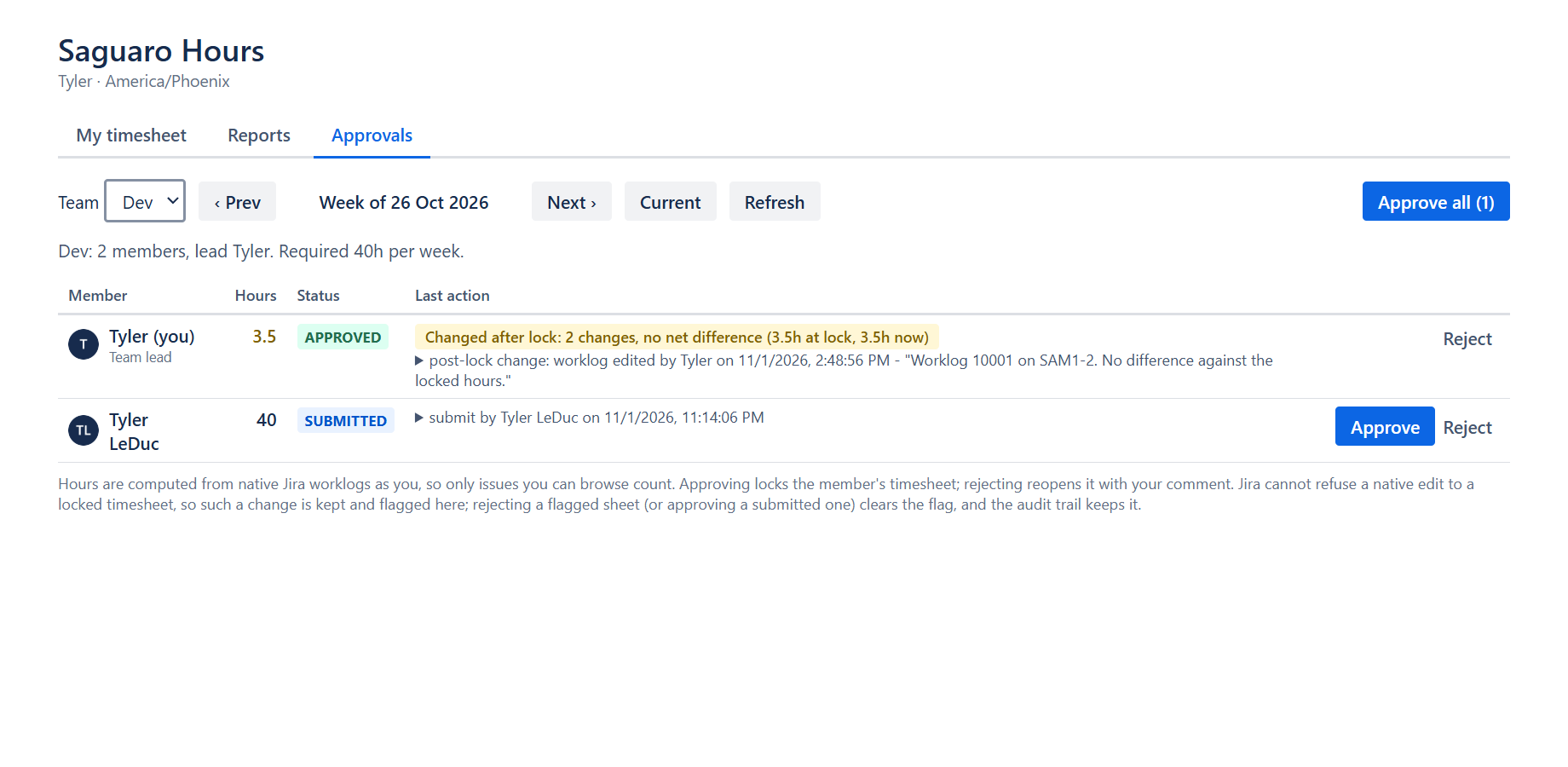
4. Approved periods stay locked, and later edits are flagged
An approved period stays locked in the app. The app cannot stop someone from editing a worklog in Jira's own Work log tab, because Jira saves that edit without asking the app. So the app watches for it. When Jira reports a worklog change on a day in a submitted or approved period, the app:
- adds an entry to the audit trail,
- shows a chip on the sheet with the hours before and after, for example "Changed after lock: +0.25h (3.5h at lock, 3.75h now), 1 change",
- leaves the status and the submitted hours as they were.
The lead sees the same chip in Approvals. The warning clears on the next status change, a rejection or an approval.
5. Everyone can see what is waiting
- The Approvals tab shows a count of sheets waiting.
- A banner in the grid points to the previous period if it is short of the required hours or not submitted.
- A dashboard gadget shows a team's hours this period against its required hours, who has not submitted, and pending approvals.
- Email reminders, if an administrator turns them on: on the first day of a new period, each member whose last period is not submitted gets one email, and once a week each lead and backup approver gets a list of the timesheets waiting for them. Jira's own mail sends them; the app makes no calls outside Atlassian.
- Each status change is kept in an audit trail with the person, time, comment and hours. The last 100 entries are kept.
Limits
- Team membership is the current list. Membership by period is not built.
- One backup approver per team.
- Email delivery is decided by Jira. If outgoing mail is off on the site, Jira refuses the email and the admin page shows why.
- Hours come from Jira as the viewer sees them. Issues the viewer cannot browse are not counted, and days follow the viewer's time zone.
Full details: Periods and approvals, Teams, Email reminders and Post-lock warnings.
Status: Saguaro Hours was submitted to the Atlassian Marketplace on 2026-11-03 and is waiting for approval. Everything above is built and tested on our development site as of 2026-11-04. The build under review has steps 2 to 5 without the newer options: it has one period type for the site, one required-hours figure for everyone, the lead (no backup approver) and in-app reminders only. It does not yet have per-team periods, the backup approver, per-person hours, holidays and days off, the short-period question, "Require full hours before submit", "Nobody approves their own timesheet" or email reminders.
Related
- Weekly timesheets in Jira, with a free Excel template
- How to get a worklog report in Jira Cloud
- Jira time tracking apps compared, including which other apps have approvals
- Tempo cost calculator
Email me when it's live
Saguaro Hours is free for up to 10 users. Email me when it's live and we will send one email on the day the listing is approved. See the product page for prices.