
Azure DevOps work items in Excel for Mac
The Team tab and the "Open in Excel" button in Azure Boards depend on the Azure DevOps Office Integration, which installs only on Windows. On a Mac there is no Team ribbon, so the usual publish-from-Excel workflow is not available.
Option 1: CSV export and import (built in)
From a query, use Export to CSV, edit the file in Excel for Mac, then use Import work items on the Boards Work items page. It works, but the file has no dropdowns, there is no field-by-field comparison with the current values in Azure DevOps, and there is no undo.
Option 2: Excel Round-Trip
Excel Round-Trip runs inside Azure DevOps in the browser, so the operating system does not matter.
- Open Boards, Excel Round-Trip, pick a saved query and choose the columns.
- Download the .xlsx and open it in Excel for Mac. State, Priority, Area Path and Iteration Path have dropdowns.
- Edit, add rows for new work items, move rows between Title levels to change parents. Save.
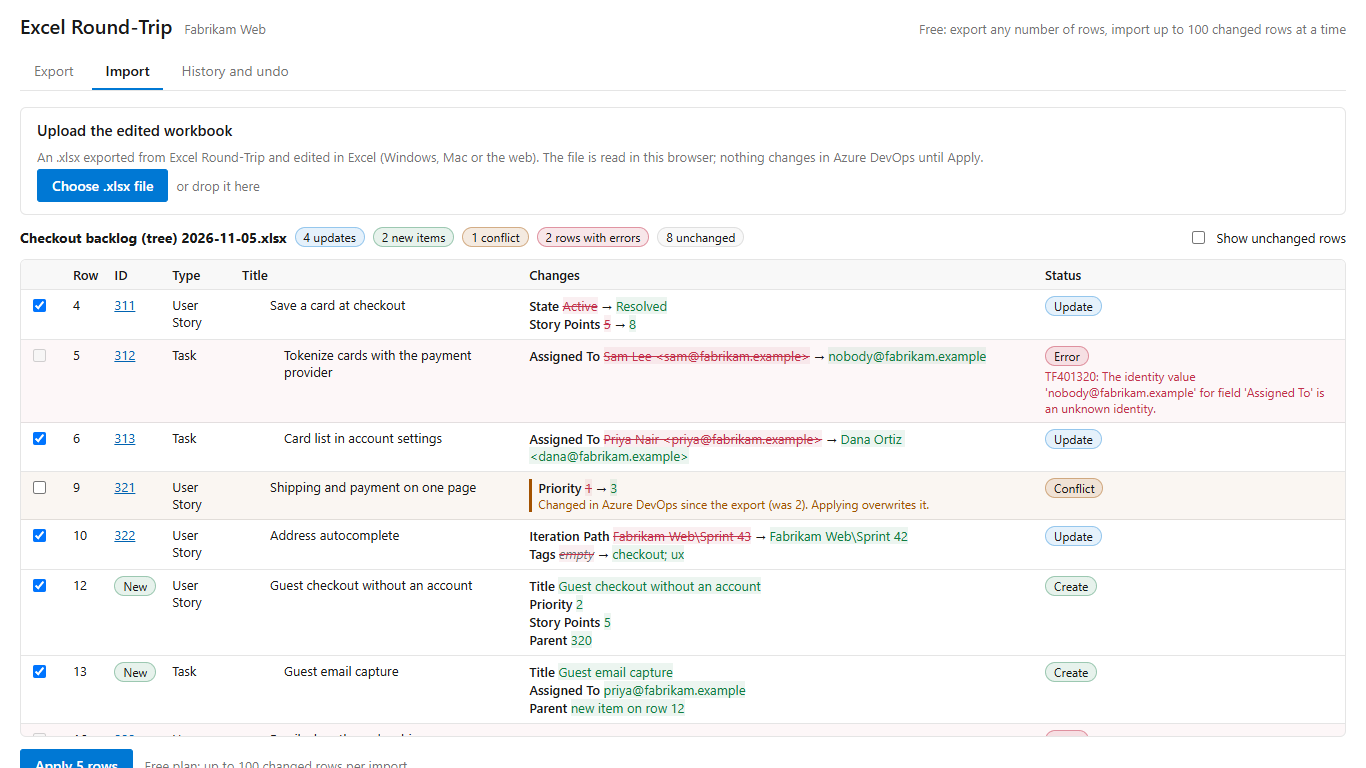
- Upload the file. Review the diff: current value, new value, and anything changed in Azure DevOps since the export.
- Select Apply. Every import can be undone from the history tab.
Get Excel Round-Trip on the Visual Studio Marketplace (free up to 100 changed rows per import).
Excel Round-Trip is made by Everformat and is not affiliated with Microsoft. Excel and Mac are trademarks of their owners.
Guides
- Azure DevOps work items in Excel for Mac
- Bulk update Azure DevOps work items from Excel
- Open in Excel without the Office Integration add-in
- Import work items from Excel
- Export a backlog to Excel with parent and child rows
- Move unfinished work to the next sprint
Also for Azure DevOps: Saguaro Hours, time tracking and weekly timesheets in Azure Boards, free for up to 5 people.